Connecting a VFD Spindle#
How I added a Huanyang VFD spindle to my CNC
Introduction#
Note: This article is also available on Instructables: Connecting a VFD Spindle
My CNC came with a 400W DC spindle. It was adequate for a beginner, but as my needs grew I decided to upgrade to a VFD spindle. It is more powerful, more precise, and can be directly controlled from the G-code.
I chose to go with an 800W water-cooled spindle. I picked the Huanyang brand, which had the most comprehensive documentation and good reviews. The settings and examples in this article will be for that model.
VFD overview#
A VFD (Variable Frequency Drive) generates a 3-phase sine wave to power the AC motor of a spindle. The motor spins with the frequency of the wave.
The VFD has two control inputs that we care about.
One is the VI pin, which takes a DC voltage from 0 to 10V and determines the output frequency.
Keep in mind that there is a jumper near the right side of the VFD with positions VI and VR.
It needs to be in the VI position for this to work.
The other input is the FOR pin, which starts the spindle in the forward direction.
The Grbl controllers don’t provide a DC voltage for setting the spindle speed. What they have instead is a PWM (Pulse-Width Modulation) output for controlling the power of a laser module. I will need to use a PWM to DC converter to bridge the two devices.
As the VFD generates powerful current at high frequencies, it produces a lot of electromagnetic interference.
To reduce its effects on the CNC machine, I placed the VFD inside a metal cabinet and added an AC filter on the power line.
The VFD cabinet#
The cabinet was inspired by Clough42’s video about building his VFD enclosure Lathe VFD 5: How to Build an Electronics Enclosure
I picked the cheapest 16x12x8 metal enclosure I could find: https://www.amazon.com/dp/B0DP7FV2PT
It has relatively poor reviews for its thin walls and light weight. This was actually perfect for my needs as I don’t need anything rugged that will be outdoors. The thin walls made it easier to cut the necessary holes.
First I laid out the main components on the back plate - the VFD, the AC filter and a DIN rail with all terminal blocks. Then I drilled holes for the screws and mounted all components.
For cutting the holes in the box walls I bought an assortment of carbide tooth hole saws. They turned out to be not as expensive as I feared.
For best results when cutting the holes, make sure you have a piece of wood on the back side for support,
and use a few drops of cutting fluid. Also use a drill press if possible.
Unfortunately for me the box was too big to fit under the drill press so I had to use a cordless drill instead.
This resulted in the holes being not so accurate, however every one of them was going to be covered so all the mistakes ended up hidden.
Then I installed all the components and connected the wires. For connecting the wires I used crimped ferrules and fork connectors.
The external cables and connectors are:
- AC cable for the main power (bottom)
- Ribbon cable for the remote control panel (top)
- Control cable that connects to the CNC (top)
- H20 connector for the spindle cable (right)
- C8 connector for the water pump (bottom)
- Banana plug for grounding the dust collection (left)
The holes for the AC power, the control cable and the ribbon cable have nylon glands where they pass through the sheet metal.
Since the ribbon cable is flat, I added a plastic insert to fit the round gland:
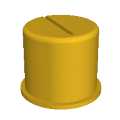 flat_cable_grommet.stl
The ribbon cable runs to the front of my CNC table, where I mounted the remote control panel.
It is attached to the table with a custom bracket:
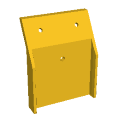 vfd_control_bracket.stl
Electronics#
The PWM converter#
A VFD needs a converter to translate the PWM signal from the control box to a 0-10V voltage level. This is the model I got: https://www.amazon.com/dp/B07XZ836QF
There are two possibilities where you can place the converter.
It can be inside or close to the controller box and you send the converted signal over the cable to the VFD.
Or you can send the PWM signal over the cable to the VFD and have the converter placed somewhere next to it.
Both are equally valid. The main factor to consider is where you can get power for the converter, as it needs an external power source.
Note: This particular converter is listed as requiring a 12-30V power source, however with 12V power it can’t reach the full 10V output. It’s best to supply it with higher voltage, like 24V.
I decided to go with the first option by placing the converter inside the controller box. I had room for it and easy access to 24V from one of the fan sockets on the motherboard.
The other option can also work well since the Huanyang VFD provides 24V for accessories. It will be the way to go if you want to avoid modifying the control box.
To get the PWM signal from the rear of the controller over to the converter I routed a single wire from the laser connector back into the box through the hole for the laser/spindle switch.
I also replaced the original 2-pin Spindle connector with 5 pins, which allows me to have more wires in the cable - the speed signal, the forward signal, shielding, and more.
Note: While the converter is still easily accessible, it may be a good time to do some initial calibration. Run the PWM at 100% (or simply connect 5V to the converter’s input). Measure the output voltage with a multimeter. Adjust the blue trim pot to get the output at 10V, or slightly under.
Dedicated Forward signal#
In addition to setting the speed using the 0-10V voltage level, the VFD needs to be instructed to start the spindle. This is done by connecting the FOR pin to DCM.
Most online VFD tutorials recommend a permanent connection. This relies on the VFD staying inactive when the speed control is at 0 volts.
I may be overly cautious, but I don’t trust this a 100%. Slight electrical noise could possibly send a signal to the VFD and make it spin accidentally. This could be dangerous.
For extra safety I decided to make the Forward signal explicit. The controller motherboard has a relay that turns on when the spindle is running. Its original purpose is to provide power to the stock DC brushed spindle. It is wired like this:
I rewired it to instead connect the FOR and DCM pins on the VFD:
This also frees up the 48V rail of the PSU to be used for future upgrades.
If modifying the power cables inside the controller box is not an option, then a second external relay can be used.
RELAY1 will turn on RELAY2, which will connect FOR and DCM.
The power supply output should be adjusted via the speed knob to match the voltage requirements of the new relay, for example 12V.
Don’t forget to add a flyback diode like 1N4007 to absorb the voltage spike when the relay turns off.
Here’s the final wiring of the control cable on the VFD side. The speed signal goes to the VI input (red), the forward signal goes to the FOR input (white), and the common ground connects to both ACM and DCM (black). The green wire goes to earth, as explained in the next section.
Permanently connect the spindle to the Z probe#
Normally when using a Z probe you have to temporarily connect an alligator clip to the spindle. This extra step can be avoided if the spindle is permanently connected to the probe.
If you do this, you no longer need to bother with the alligator clip. This also opens the possibility for simpler tool length sensors: Designs for DIY tool length sensor
The connection can be done in multiple ways. I used one of the wires in the control cable to connect the negative probe pin to the VFD ground (the AC earth). See the green dashed line in the schematic.
Note: Some spindles don’t have the grounding pin of their 4-pin connector wired to the spindle chassis. You can check with a multimeter if there is a connection between pin 4 and the metal body. If they are not connected, you will have to open the back cover of the spindle and add an extra wire.
Note about the Laser/Spindle switch#
All CNC motherboards from FoxAlien and Genmitsu I’ve seen have a switch to toggle between Laser and Spindle modes. In Laser mode the switch disables the spindle relay and in Spindle mode the switch disables the PWM signal.
For my wiring to work, I need both to be enabled. The VFD needs the PWM output to control the speed and the Forward signal needs the relay.
I made a small mod to the motherboard that permanently bypasses the PWM pole of the switch. It is just a short piece of wire that is soldered to the necessary pins. This way I can move the switch to Spindle mode and not lose the PWM output.
The spindle cable#
Since the VFD produces high voltage and high current for the spindle, I took extra care to make the cable extra robust with beefy H20 connectors on both ends. It is important to use shielded and grounded cable, especially if it is going to be placed in the drag chain along with the control cables.
I will outline my process for soldering the connectors, as it is the most critical part.
-
Take apart the connector. Pre-tin the four pins
-
Very important: Insert the rest of the connector pieces onto the cable before doing any soldering. They need to be in the right order. First goes the main housing, then the threaded nut (double-check the orientation), and finally the protective sleeve
-
Strip 20mm of the outer jacket. Unbraid the shielding mesh. Cut away the foil and the cotton threads if there are any
-
Cut away about half of the mesh, leaving the half that is closer to the grounding wire (usually green). Twist it into a rope
-
Strip the grounding wire, wrap the mesh rope around the base of it and solder them together. Cut away the excess of the rope. Protect with a short piece of heat-shrink tube
-
Strip 5-6mm from the other three wires and tin them
-
Add pieces of shrink tube on all four wires. Solder the wires to the connector pins and shrink the tubes. Make sure the green grounding wire goes in pin #4
-
Assemble the connector. In my case the cable was too thick for the original protective sleeve, so I used a large diameter shrink tube in its place
Note: Steps 4 and 5 are only necessary for the VFD end of the cable. On the spindle end, remove the entire shielding mesh and just connect the grounding wire to pin #4 like the other three.
Exhaust fan and water pump#
The VFD can be configured to trigger a relay when the spindle starts up. It connects the FA and FB pins. I use it to connect 110V AC power to the exhaust fan in the VFD cabinet and the water pump for the spindle coolant.
Note: The Huanyang manual has a very misleading diagram for the relay pins FA, FB and FC. In practice FB is the common, FA is the normally-open and FC is the normally-closed.
Configuration#
After everything is assembled, let’s configure the necessary settings.
VFD settings#
The settings here are specific to the Huanyang VFD. You will have to adjust them for the brand you have
PD001 = 1 - this enables the FOR pin to start the spindle
PD002 = 1 - this enables the external speed control. There is a jumper on the VFD that switches between VR and VI - make sure it is in the VI (left) position
PD014 = 3 - spin up time in seconds. The default is way too pessimistic
PD015 = 5 - spin down time
PD052 = 01 - connect FA and FB when the spindle is running
PD070 = 0 - use 0-10V input range
PD144 = 3000 - multiplier to convert from Hz to RPM (purely for display purposes). Use the » button on the front of the VFD to switch between different display modes, like Hz or RPM
Sometimes you want to switch to manual control for testing or troubleshooting.
If you change both PD001 and PD002 to 0, you will get manual control over the starting, stopping and speed.
Return both to 1 to switch back to automated control.
Grbl settings#
Additionally, you need to change the max spindle RPM in the Grbl settings:
$30 = 24000
This is the value that the controller uses to convert G-code speed to PWM level.
If you have an air-cooled spindle, it is likely that it needs to run at some minimum RPM to avoid overheating. Use setting $31 to specify the minimum speed.
Basic tuning#
After you have everything running, you will notice that the speed you get from the VFD is not exactly what the G-code asked for. There are multiple reasons for the inaccuracies and there are ways to improve them to some extent.
The first source of inaccuracy is the PWM signal itself. It only has 1024 levels of precision.
The second (and largest) source is the PWM to DC converter. It doesn’t truly output 0 to 10 volts. Also the relation between the input and the output is not exactly linear.
This is the process I follow to get best accuracy:
-
Disconnect the spindle. You don’t need it for this process. Just look at the VFD display to see the RPM value
-
Turn on the spindle at full speed (24000 RPM). You can use the G-code command M3 S24000 or the controls in your sender software. Measure the voltage at the output of the converter. There should be a trim pot on the converter to adjust the voltage. Use it to get the output close to 10V or slightly under
-
Test common speeds like 6000 RPM, 12000 RPM, 24000 RPM, and such, and see if the VFD shows approximately the same value. If the accuracy is acceptable, you can stop there. Additionally, you can adjust the speeds in your tool library to the values that make the VFD spin at the desired speed (for example, maybe you need to request 12670 in G-code to get exact 12000 at the spindle)
Advanced tuning#
Caution: math ahead
For more precise tuning, take a look at the VFD settings from PD072 to PD076.
They define the linear mapping from input voltage to frequency.
Here’s my understanding of what they mean:
-
The pair PD073 and PD075 define a frequency at 0 volts. PD073 is the absolute value and PD075 is the sign (0 for positive, 1 for negative).
For example to select frequency of -50Hz, set PD073=50 and PD075=1.
The default is 0Hz -
The pair PD072 and PD074 define the frequency at 10 volts. One for the absolute value and the other for the sign.
The default is +400Hz -
Setting PD076 determines how to interpret negative frequency. If PD076=0, negative values are ignored and treated as 0. If PD076=1, negative values will reverse the rotation of the spindle.
Warning: Make sure PD076 is set to 0 before changing any of the others! You never want the spindle to go in reverse based on the voltage input
Here’s how to use these parameters in practice. Imagine you request a speed of 24 RPM. Ideally this should correspond to about 0.01V. In practice though, the PWM converter may have a minimum output voltage of 0.8V - which leads to a speed of 1920 RPM. That’s way more than requested.
You can compensate for this by setting the minimum frequency to a negative value. You want to create a line that has 0Hz at 0.8V and 400Hz at 10V. This means at 0V it should be at -35Hz. Set PD073=35 and PD075=1.
By the same method you can raise PD072 above 400 to compensate for the PWM converter not reaching the full 10V at max RPM. Let’s say you want 400Hz to be reached at 9.5V. If you extrapolate the graph to 10V, you will get a frequency value of PD072=423
Use this method as a starting point. Test again the common speeds, and keep tweaking the values little by little until you get acceptable results.
The following values worked best for me:
PD072=410
PD073=25
PD074=0
PD075=1
PD076=0
Parts list#
Finally, here are the parts that I used in this build:
VFD and spindle package: https://www.amazon.com/dp/B07BBHJMQB
Control panel extension cable: https://www.amazon.com/dp/B07P5LS33N
PWM to DC converter: https://www.amazon.com/dp/B07XZ836QF
Metal box: https://www.amazon.com/dp/B0DP7FV2PT
DIN rail with terminal blocks: https://www.amazon.com/dp/B0F4XW66S7
DIN mounted fuse holder: https://www.amazon.com/dp/B086MKNFYK
80x25mm AC fan: https://www.amazon.com/dp/B0CFF2G4C7
80mm fan filters: https://www.amazon.com/dp/B0FNWSPB69
Cable glands: https://www.amazon.com/dp/B083HQ8K29
5-pin GX16 connector for replacing the spindle connector on the controller
3-pin JST-XH male connector for the PWM port
H20-4 connectors for the spindle cable
C8 connectors for the water pump cable
Banana plug for the dust collection grounding